How to Set Up a New Device Safely Before Your Child Opens It (Holiday 2025 Guide for Parents)

Best safe tech gifts for kids are the priority every December as it remains the biggest month for gifting smartphones, tablets, and gaming consoles. According to a November survey from CNET, more than half of holiday-tech shoppers were counting on Black Friday sales to secure these devices. The data shows that nearly 59% of buyers were planning on buying electronic gifts for their loved ones this year.
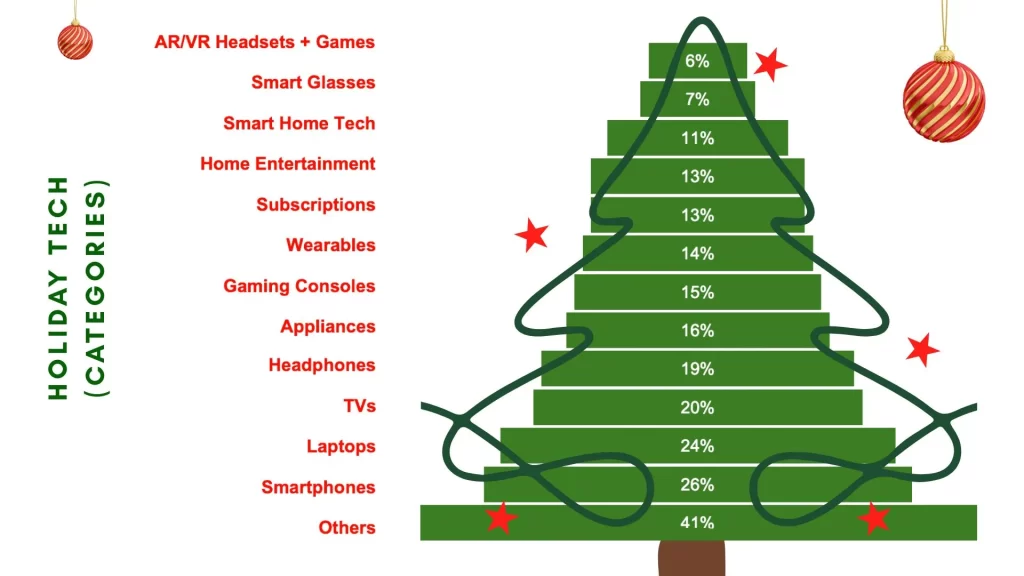
Data from CNET.
The findings were not too far off the mark. Adobe reported over 1 trillion visits to U.S. retail sites this Black Friday, and that U.S. e-commerce sales alone reached a record $11.8 billion online. Electronics led the surge, with consoles like the PlayStation 5, Xbox Series X, and Nintendo Switch OLED topping charts.
Because of this surge, many households will have at least one new device under the tree and often children are so excited, they unwrap and start using the gadget immediately. That’s exactly why it’s so important to take a few precautionary steps before your child’s hands ever touch the screen, it gives you peace of mind and makes for a calmer, safer Christmas morning.
The following steps will help you set up any new device safely, whether it’s a phone, tablet, laptop, or gaming console, so it’s ready for your child to use as soon as they open the gift.
Best safe tech gifts for kids: Step 1- Unbox early and do the first-time setup
- Charge the device fully because many setups require a certain battery level, and you don’t want a low-battery disruption right when your child starts using it.
- Connect the device to your secure home Wi-Fi (or a safe, trusted network) , not a random public hotspot.
- Update the operating system: whether it’s iOS, Android, Windows, or a console system (like PlayStation or Switch), run the first software update. This ensures you start with the latest security patches.
- Install all essential security updates that reduce vulnerability from the get-go.
By doing this early, you avoid the temptation for your child to begin exploring unknown corners of the device unsupervised.
Best safe tech gifts for kids: Step 2- Create a Child-Friendly Environment
For Smartphones / Tablets
- Create a separate child-managed account if possible, rather than giving them full admin access.
- Set a strong passcode or PIN to control settings, apps, and usage.
- Turn on built-in screen-time or parental-control features (e.g. Apple’s Screen Time, Google Family Link) such that you can restrict usage, downtime, or bed-time access.
For Laptops
- Create a standard (non-admin) child account, avoid giving them administrator privileges.
- Enable SafeSearch, safe browsing, and limit installing new software without approval.
For Gaming Consoles
- Configure age ratings, disable or restrict in-game chat, and restrict access to mature games.
- Set play-time limits, especially useful over holiday break when kids might disappear into gaming sessions for hours.
This step helps shape a safer, more age-appropriate digital environment from day one.
Best safe tech gifts for kids: Step 3- Lock Down Privacy & Safety
- Turn off location-sharing by default. Disable “Share My Location,” and don’t grant apps permission to auto-sync contacts or photos unless absolutely necessary.
- Review app permissions: Which apps can access the camera, microphone, contacts, or photo library? Revoke any that seem unnecessary or risky.
- Enable auto-updates for apps and security settings, this ensures new vulnerabilities are patched automatically.
These practices help protect your child’s privacy before they even begin using the device seriously.
Best safe tech gifts for kids: Step 4: Install a Family Safety System – Why Mobicip Matters
Why Mobicip is the most important step before your child unwraps the device
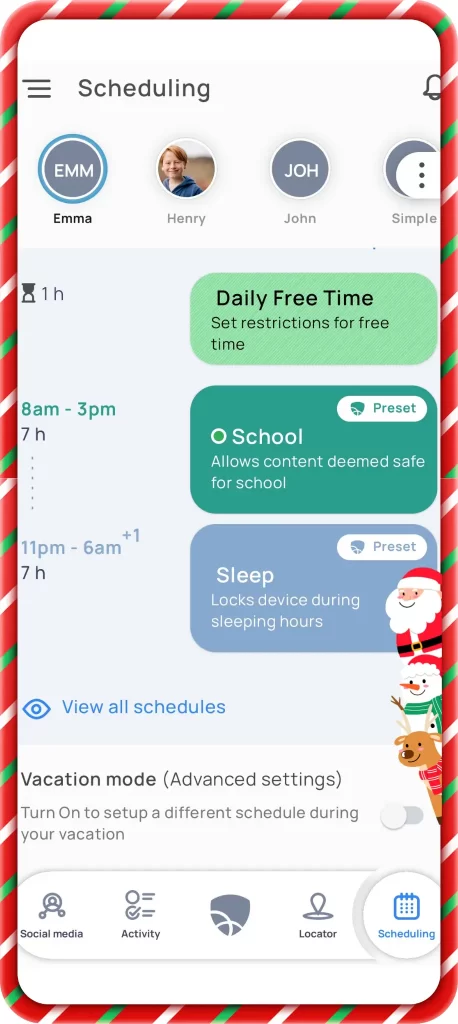
- Mobicip gives you a single dashboard to supervise all holiday devices, phones, tablets, laptops, gaming consoles.
- It works across apps and browsers, so whether your child is switching between YouTube, Instagram, Roblox, or just browsing the web, Mobicip follows.
- You can set up special schedules for “holiday break mode” now, and easily switch back to school-day routines in January.
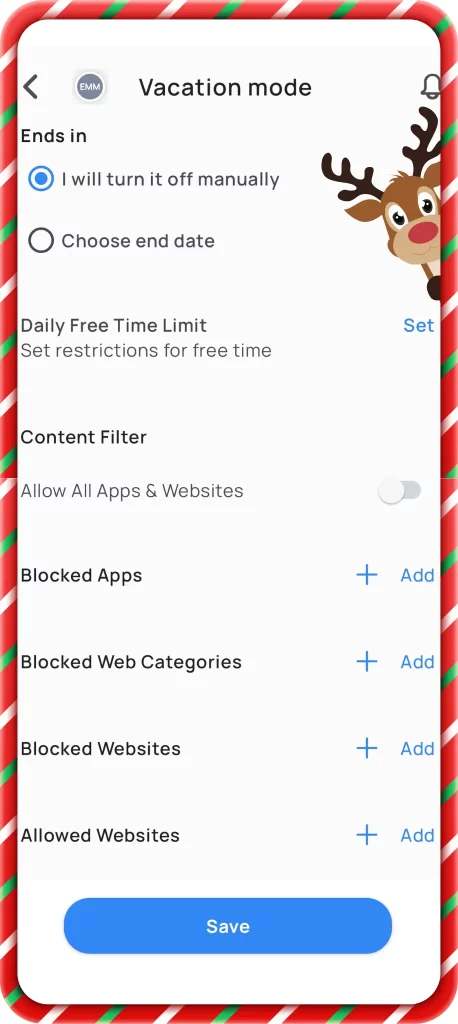
How to add Mobicip before gifting
- Download Mobicip on the child’s device.
- Sign in using your parent account.
- Turn on content filtering, age-appropriate app blocking, and browsing restrictions.
- Configure screen time schedules e.g., “Holiday Break Mode.”
- Add family rules (bedtime screens off, homework time, no late-night gaming).
- Enable activity reports so you’re informed from Day 1.
Best safe tech gifts for kids: Step 5- Set Up Purchase & App Controls
- Disable in-app purchases, or require parent approval for any purchase.
- Block access to payment cards and ensure payment methods aren’t stored in the child’s profile.
- Turn on purchase notifications so you receive an alert if a purchase is attempted.
- For gaming consoles: ensure purchasing games, DLCs, or in-game items requires a password or PIN.
This helps avoid surprise charges or impulsive spending : a common risk when children get new devices and explore freely.
Best safe tech gifts for kids: Step 6- Install Essential Apps Before Gifting
Instead of handing over a bare device, pre-install a curated set of apps you’re comfortable with:
- A child-safe browser (e.g. Kiddle, KidzSearch, or SafeVision), or other trusted kid-friendly alternatives.
- Messaging or communication apps that offer parental supervision or monitoring.
- Educational, creativity, or age-appropriate gaming apps you want them to have.
- Offline content, especially useful during holiday travel or downtime.
This gives them safe, constructive content from the start, without the risk of accidentally stumbling onto something inappropriate.
Best safe tech gifts for kids: Step 7- Holiday-Specific Digital Rules
Because the holidays are a special time, consider adding festive structure:
- Create “Christmas Morning Screen Limits” e.g., once cleaning up or gift-opening is done, only 30 to 60 minutes of screen time before family time or holiday meals.
- During winter break: set a daily limit, gaming windows, “quiet hours” (e.g. no screens after 9 p.m.).
- Encourage digital-free family traditions: baking cookies, decorating, board games, outdoor walks. Always alternate screen time with shared experiences.
- Use Mobicip’s scheduling feature to enforce those limits seamlessly, without having to police them constantly.
This balances the excitement of a new device with healthy, mindful habits and helps make this holiday break about family as much as tech.
Step 8: Add a “Tech Contract” to the Gift
Slip a small printed note inside the wrapping a simple “tech contract” for your child to read when they open their present. It can include:
- Device rules (when/where they can use it)
- Privacy rules (what’s off-limits: contacts, location, photos)
- Online kindness expectations (respectful messaging and gaming)
- Time limits (daily usage, bedtime restrictions)
Add a fun holiday twist:
“Your Christmas gift comes with magical powers, use them wisely!”
If you like, you can download a sample tech-contract to adapt from the resources of Center for Online Safety : https://www.centerforonlinesafety.com/blog/technology-contracts
Conclusion: Give the Gift of Safe Digital Independence
By taking a little time before your child ever lays hands on their new device, you’re not just wrapping a gadget, you’re wrapping safety, peace of mind, and healthy digital habits. That means a smoother, more joyful Christmas morning for everyone.
With devices pre-configured, privacy locked down, parental controls in place, and rules set, your child can dive into their new digital world with confidence. And you, as a parent, can enjoy the holidays knowing you’ve done the right thing.
Here’s to a safe, happy, and tech-smart holiday season!